Where to Share Your Salon Booking Link in 2026
Your booking link only works when clients can find it at the moment they decide to book. Here are the best places to share it and how to prioritize them.
Key takeaways
- Put your booking link anywhere clients already look for your salon, especially Google, Instagram, your website, and direct messages.
- Use one clear call to action, such as “Book your appointment,” instead of making clients search through several pages.
- Keep the destination mobile-friendly, current, and connected to real availability so clients can complete the booking without calling.
- Add the link to offline materials and staff messages so existing clients can rebook without waiting for a reply.
- Test every placement regularly and remove old links, expired promotions, and booking pages that no longer match your services.
Where to share your salon booking link
If you are searching for where to share your salon booking link, the short answer is: put it wherever a client may decide to make an appointment. That usually means your Google Business Profile, Instagram profile, website, email signature, text messages, Facebook Page, and printed materials inside the salon.
Do not treat the link as something you publish once and forget. A client may discover your salon through Google, browse your work on Instagram, receive a reminder by email, or scan a card at checkout. Each path should lead to the same current booking page, with accurate services, staff availability, prices, and appointment rules.
Create one booking destination before you promote it
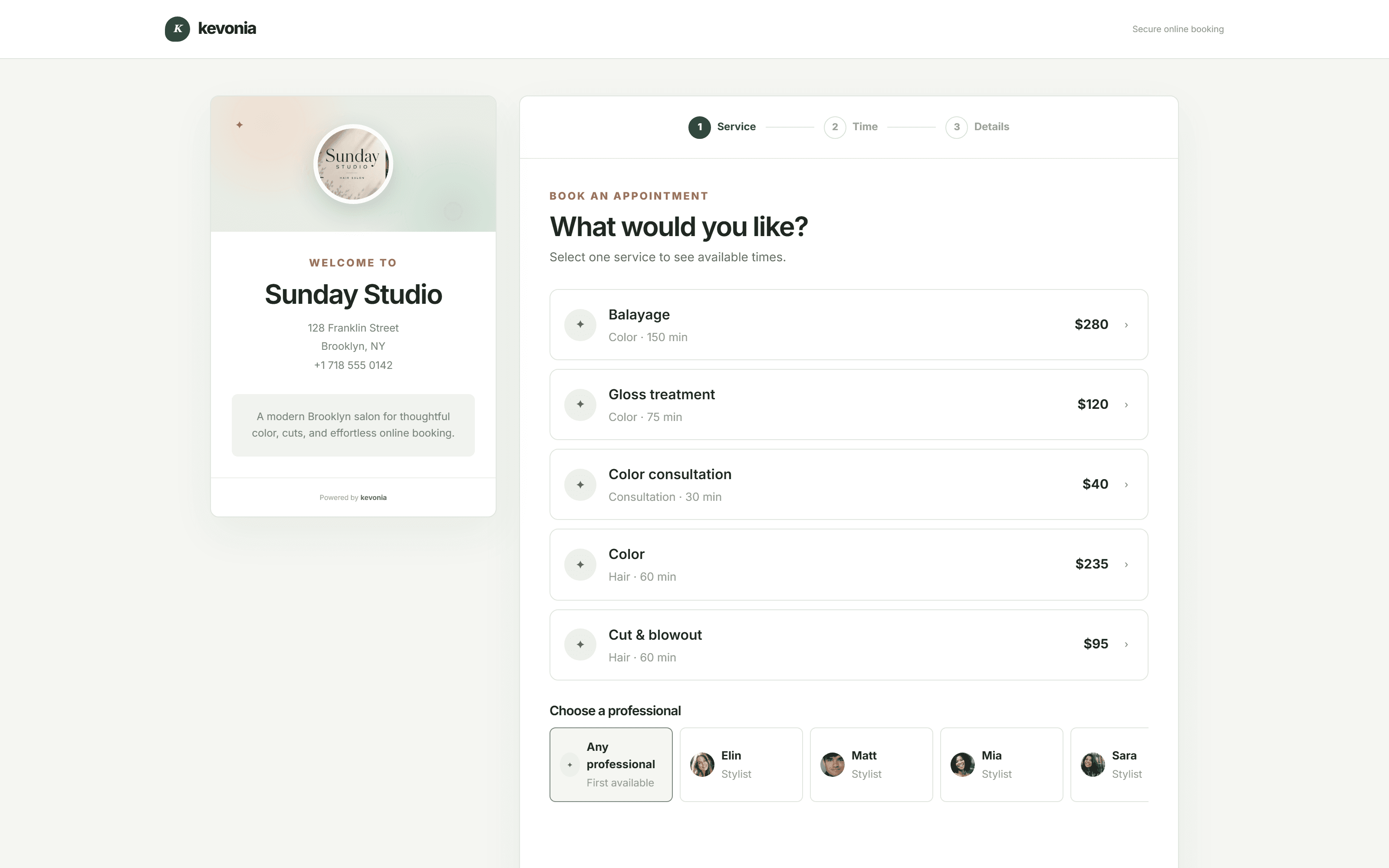
Before adding the link to profiles and marketing materials, choose the page clients should land on. The best destination lets a client understand what you offer and complete the booking without having to call, create a long message, or wait for someone at the front desk.
A useful booking page should answer four questions immediately: What service can I choose? Which professional is available? When is the next suitable time? What will I pay or need to pay today? If the page makes a client repeat information they already gave you elsewhere, the link is doing less work than it should.
- Use a short, recognizable URL if your booking provider gives you one.
- Check the page on an iPhone and Android phone before sharing it widely.
- Make sure the service menu uses client-friendly names, durations, prices, and descriptions.
- Confirm that staff schedules, breaks, time off, closures, and minimum-notice rules are current.
- Decide whether deposits are required for selected services and explain that requirement before checkout.
- Open the link in a private browser window to confirm that a new client can book without staff access.
For a salon using Kevonia, the branded booking page is available at kevonia.com/your-salon. Clients choose a service, professional, date, and time from the page. The workspace behind it includes the service menu and availability rules, so the link is not just a contact form that sends requests to your inbox. For more detail, see Kevonia's hairdressing booking system.
The best places to share the link, in priority order
You do not need to publish the link everywhere on the same day. Start with channels where people already have strong intent to book, then add places that help you reach returning clients and people who are still deciding.
- Google Business Profile: Put the booking destination where local searchers can act after finding your hours, photos, location, and reviews. Google’s guidance says business links should lead to a dedicated page for the specific business and allow customers to complete the stated action.
- Your website: Add a prominent “Book your appointment” button to the home page, service pages, contact page, and staff pages. Do not make visitors hunt through the navigation.
- Instagram profile: Add the link to the profile’s website or link area, then mention it in captions, Stories, Reels, and direct replies when a client asks about availability.
- Facebook Page: Add the booking destination to the Page’s action area, website field, pinned post, and relevant service posts.
- Email: Include it in your signature, welcome email, appointment confirmation, rebooking message, and newsletter when the message has a clear booking reason.
- Text messages and direct messages: Send the link when a client asks for an appointment, wants to rebook, or says they are looking for a particular service.
- In-salon materials: Add it to business cards, checkout cards, mirrors, appointment cards, receipts, window signage, and a QR code near reception.
- Local partnerships: Give the link or QR code to nearby gyms, bridal shops, hotels, photographers, wellness providers, and event organizers who regularly refer clients.
The highest-priority placements are the ones you control and can keep accurate. A forgotten directory profile or old flyer can be worse than no link if it sends clients to an outdated booking page, an unavailable professional, or a discontinued service.
How to share your link on Instagram and Facebook
Instagram is often where beauty clients evaluate your work before they book. The profile link should be easy to spot, but it should not be your only placement. Someone may discover a haircut, lash set, tattoo, or facial through an individual post and never return to your profile before deciding. Supporting details are available from add booking link to Instagram.
For the profile, use a direct call to action such as “Book your appointment” or “Check availability.” If your account has several important destinations, keep the booking option first. Avoid making a new client choose between a booking page, price list, location page, and contact form before they can reserve a time.
- Open your Instagram professional profile and edit the profile links or website field available to your account.
- Paste the booking page and save it.
- View the public profile from a separate account or logged-out browser.
- Add “Book online” to the bio text so visitors know what the link does.
- Create a Story highlight called “Book” or “Appointments” and point viewers to the profile link.
- Add a booking instruction to posts that show available services, such as “See the profile link to choose a time.”
- Reply to availability questions with the link instead of asking the client to send several possible dates.
A professional Instagram account can include business contact information and business tools, but the exact options shown can vary by account and region. Treat any native appointment button as an extra route, not a reason to remove your main booking link. Your primary link should remain the destination you can test and update.
On Facebook, place the same destination in the Page’s action button or website area, then pin a short post explaining how to book. A pinned post is useful for clients who visit after seeing a local recommendation, while the action area is better for people who are ready to act immediately.
Add a booking link to Google Business Profile
Google is one of the most important places to share a salon booking link because people often search for a salon when they are already comparing services, distance, hours, and reviews. A verified Business Profile can direct customers to booking links, and Google requires business links to be relevant, crawlable, and connected to the action they describe. Supporting details are available from Google Business Profile booking link.
- Search your business name while signed in to the Google account that manages the profile.
- Choose the option to edit your profile or business information.
- Look for the booking, appointment, or links area available for your category and region.
- Add the direct booking page for your specific salon location.
- Save the change and test the public result on both Google Search and Google Maps.
- Check the link again after major service-menu or booking-system changes.
Use a dedicated salon booking page rather than a generic homepage that makes visitors search for the appointment option. If you operate more than one location, make sure each listing leads to the correct location’s page. Sending a client from a neighborhood listing to another city creates avoidable confusion and can make the profile look unreliable.
You can also use Google Business Profile posts for temporary booking prompts, such as a seasonal service, last-minute opening, or new stylist announcement. Google’s post guidance allows an action button with a link for updates and similar posts, but older posts can be archived, so do not rely on a single post as your permanent booking location.
Keep the profile itself accurate: business name, category, phone number, hours, location, services, and photos. A booking link cannot compensate for a profile that tells clients you are open when you are closed or lists services you no longer provide.
Use your website, email, messages, and offline materials
Your website should make booking possible from every page where a client may decide. Put the primary button in the header, then repeat it after service descriptions and on the contact page. A visitor reading about balayage, men’s cuts, gel manicures, injectables, or massage should not have to return to the home page to find the next step.
In email, place the link where the reader naturally needs it. A welcome email can invite a first booking. A post-appointment email can invite a rebooking. A staff member’s signature can include it for clients who prefer to schedule themselves. Use descriptive wording rather than dropping a long URL into the middle of a message.
- Front-desk reply: “You can choose a service and time here: Book your appointment.”
- Rebooking email: “Ready for your next visit? Check current availability.”
- New-client email: “Review the service menu and select the professional you want.”
- Waitlist or cancellation message: “This opening is available until someone books it.”
- Receipt or checkout card: “Scan to book your next appointment.”
- Staff social profile: “Appointments are available through the salon booking page.”
For printed materials, use a QR code that points directly to the booking page and print a short backup URL below it. Test the QR code from the distance and lighting where it will be used. A code on a glossy counter card may scan poorly, while a larger code on a window or checkout sign is easier to use.
Consider the client’s situation. Someone leaving an appointment may want to rebook in two minutes. Someone browsing your work at night may want to reserve a slot without a phone call. Someone referred by a friend may trust a simple text with the direct page more than a message asking them to explain what they need.
Where Kevonia fits into this link strategy
Kevonia fits when you want one branded online booking page to share across your public channels, with the salon’s scheduling rules behind it. Clients can book from the page 24/7 by selecting a service, professional, date, and time. The workspace includes a team calendar, client records, service menu, availability rules, and Stripe payments. For more detail, see Kevonia's salon reservation software.
That matters because sharing a link is only useful if the availability it shows is trustworthy. Kevonia checks for double bookings against hours, breaks, time off, and existing appointments. You can also set service duration, cleanup or buffer time, prices, optional deposits, professional assignments, booking windows, minimum notice, and time-slot intervals. We cover this in more depth in prevent double bookings.
For a small salon, barbershop, tattoo studio, nail salon, spa, or beauty clinic, this means the same destination can serve both discovery and rebooking. A client can find the page from Google or Instagram, choose the right professional, and receive an automatic email reminder the day before. From that email, clients can reschedule or cancel within the salon’s notice window.
Kevonia has one plan at $49.99 per month, with unlimited team members, bookings, clients, and services and no per-booking commission. The free trial lasts 14 days, requires no credit card to start, and you are never charged if you cancel before the trial ends. Those terms may make it practical to test the full link-to-booking flow before replacing links across your profiles.
A simple 10-minute distribution plan
If your booking link is new, do not wait until every marketing channel is perfect. Use this order to make the link useful today, then improve the surrounding messages over the next week.
- Copy the final booking URL and open it on your phone.
- Add it to your Google Business Profile and confirm the public booking action works.
- Add it to your website header, home page, contact page, and highest-traffic service page.
- Add it to your Instagram profile and Facebook Page.
- Send it to staff so everyone gives clients the same destination.
- Update your email signature and the next rebooking message.
- Print a QR code for checkout, reception, mirrors, or appointment cards.
- Post one short announcement with the exact action: “Book online at any time.”
- Ask one person who has never used the page to test the booking process.
- Review the link monthly and after every change to hours, staff, services, or policies.
Use different wording for different situations, but keep the destination consistent. A social post can say “Tap the profile link.” A text can say “Choose your appointment time here.” A countertop sign can say “Scan to book.” The client should not have to wonder whether each phrase leads to a different system.
If you are changing providers, leave the old link active until the new page is tested everywhere. Update the website first, then Google and social profiles, then email templates and printed materials. Ask staff to stop using saved messages that contain the old URL. We cover this in more depth in online booking system setup guide.
Common mistakes that cost bookings
Most booking-link problems are not caused by a lack of places to share the URL. They happen because the destination is unclear, outdated, difficult to use, or disconnected from the message that sent the client there.
- Linking to a homepage with no obvious booking button.
- Using a link that opens only for logged-in staff or requires a special app.
- Sharing a stylist’s personal calendar when the salon wants clients to choose among professionals.
- Leaving canceled services, old prices, or unavailable staff in the booking menu.
- Ignoring buffer time, breaks, time off, or salon closures when configuring availability.
- Sending a client to a generic multi-location page instead of the correct salon location.
- Putting the booking link in an Instagram bio but never mentioning it in posts or Stories.
- Using a QR code without testing it after changing the destination.
- Adding several links with vague labels such as “Info,” “Services,” and “Appointments” without explaining which one completes a booking.
- Assuming that a booking link replaces clear policies about deposits, cancellation notice, late arrivals, or service preparation.
Review the full journey as a client would. Start with a Google search or an Instagram post, tap the link, select a service, choose a professional, pick a time, and read the confirmation. If anything feels surprising or requires a separate phone call, fix that step before promoting the link again.
Sources
- Google Business Profile: Get started
- Google Business Profile: Business links policies and guidelines
- Google Business Profile: Manage social media links
- Google Business Profile: Create and manage posts
- Instagram Help Center: About professional accounts on Instagram
- Kevonia
- Kevonia hairdressing booking system
- Kevonia salon booking program
- Kevonia beauty salon booking software
- Kevonia spa booking software
- Kevonia salon reservation software
- How to Prevent Double Bookings in a Salon
- Online Booking System for Salons: 2026 Setup Guide
Frequently asked questions
Where should I share my salon booking link first?+
Start with your Google Business Profile, website, Instagram profile, and Facebook Page. These are the places clients commonly use to find, evaluate, and contact a local salon. Then add the link to email signatures, rebooking messages, direct messages, and printed materials. If you have limited time, prioritize the channels you control and can keep accurate.
How do I add my booking link to Instagram?+
Open your professional Instagram profile, choose Edit Profile, add the booking page in the available website or profile-links area, and save it. Add “Book online” to the bio so visitors understand the link. Also mention the link in posts, Stories, and replies to availability questions. Test the public profile from a separate account or logged-out browser.
Can I put a booking link on my Google Business Profile?+
Yes, eligible and verified profiles may provide booking or appointment link options, although the exact interface can vary by business category and region. Use a direct page for the specific salon location. The page should let clients complete the booking, not merely display a phone number or send them to a general homepage. Test the public result on both Google Search and Google Maps.
Should my salon booking link go to a homepage or a booking page?+
Use the direct booking page whenever possible. A homepage is appropriate only if the booking action is immediately visible and works well on mobile. A direct page reduces extra clicks and makes it clearer what will happen after the client taps. Keep the service menu, staff availability, prices, deposits, and notice rules current so the page matches your actual operations.
How can I share my booking link with returning salon clients?+
Use the link in appointment reminders, rebooking emails, staff email signatures, text replies, receipts, checkout cards, and QR codes at reception. A short message such as “Choose your next service and time here” is usually more useful than sending the URL without context. Returning clients should not need to call simply because they want another appointment.
What should I do if my booking link changes?+
Test the new page first, then update your website, Google Business Profile, social profiles, email templates, saved text replies, QR codes, printed cards, and staff messages. Keep the old page available during the transition if possible. Ask someone outside the business to complete a test booking from a phone, because owners often overlook permissions, outdated services, or unavailable time slots.
More from the blog
Does a Salon Need a Receptionist? A Practical 2026 Guide
A salon does not automatically need a receptionist. Use this practical guide to decide whether front-desk help, shared duties, or online booking is the right fit for your business.
Why Clients Don’t Finish Booking Online: 9 Fixes
Clients may want the appointment but still abandon the booking page. Learn how to find the friction, fix the biggest problems, and recover more completed bookings.
Squire Alternative: When a Leaner Booking System Fits Better
SQUIRE is built for full barbershop operations. Kevonia is a simpler flat-cost alternative when your priority is branded booking, scheduling, payments, and client records without per-seat or per-booking charges.