How to Prevent Salon Overbooking and Double Bookings: 9 Practical Steps
Double bookings damage client trust and put staff under pressure. Use these practical scheduling controls to keep every stylist, service, and appointment time accurate.
Key takeaways
- Use one shared source of truth for online, phone, walk-in, and staff-created appointments.
- Set service durations, cleanup buffers, staff availability, breaks, and time off before opening online booking.
- Prevent conflicts at the booking stage instead of relying on staff to notice overlapping appointments later.
- Review the team calendar daily and test realistic booking scenarios whenever your schedule changes.
How to prevent double bookings in a salon
Salon overbooking has one usual cause, and it is not the one owners assume. If two clients are assigned to the same stylist, chair, room, or time slot, the problem is usually not that your team is careless. It is that your booking process allows availability to be interpreted in more than one way. A client may book online while the front desk is taking a phone booking, or a stylist may block time on a personal calendar that the booking system never sees.
The reliable answer is to create one scheduling system, define real availability, and make every booking channel use the same rules. The steps below explain how to prevent double bookings in a salon without depending on memory, handwritten notes, or a quick glance at several disconnected calendars.
1. Choose one calendar as the source of truth
Start by deciding where every appointment must live. That includes online bookings, phone appointments, direct messages, walk-ins, rebookings at checkout, complimentary services, staff meetings, training, maintenance, and blocked-off personal time. If an appointment exists in a text thread but not in the main calendar, the system treats that period as available.
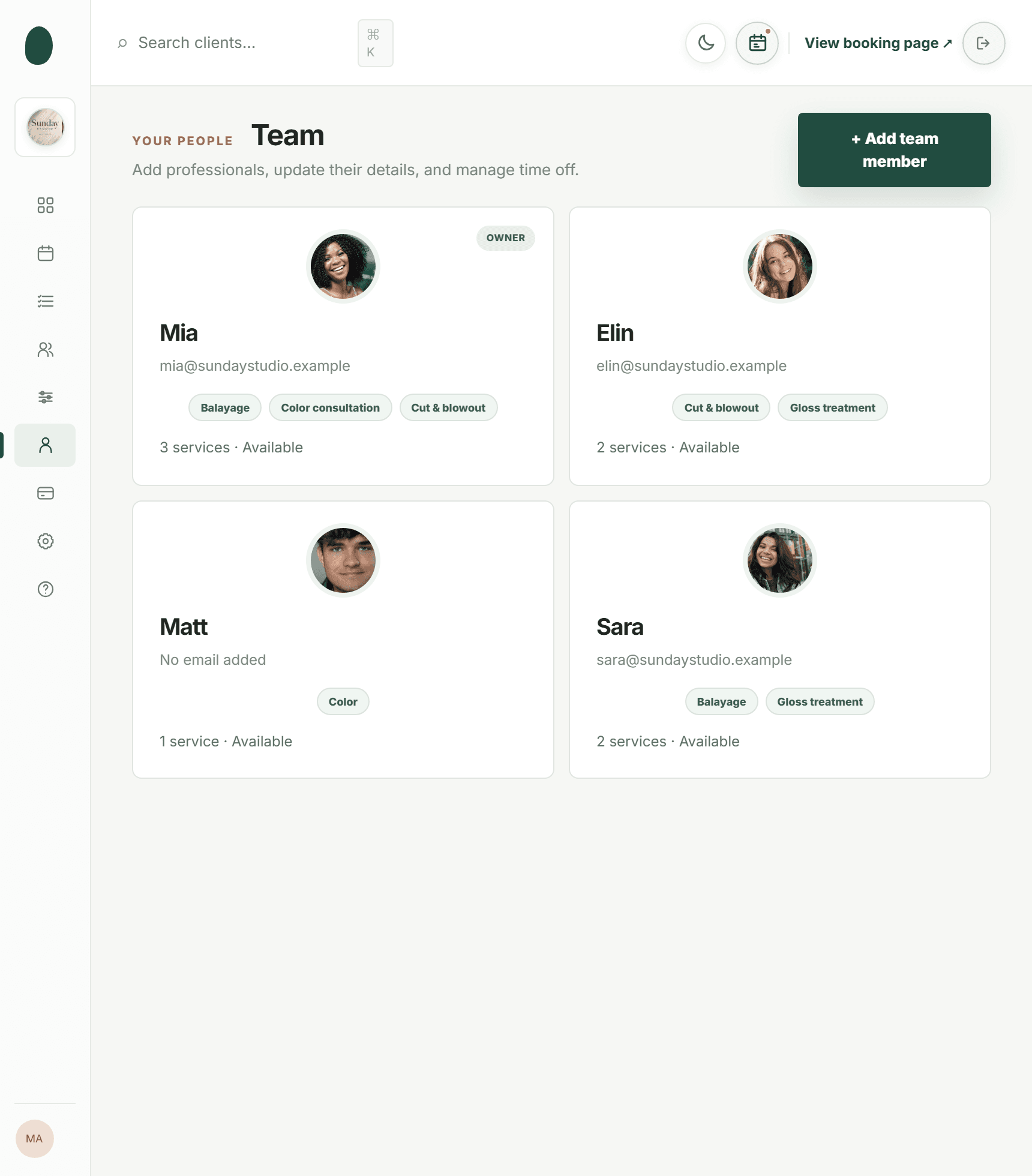
A shared team calendar should show each professional separately while still allowing the owner or front desk to see the whole day. This makes it possible to answer practical questions quickly: Is the stylist free for the full service duration? Is the treatment room occupied? Does the appointment overlap a lunch break or another client’s processing time? A team calendar with staff filters and clear color coding can reduce visual mistakes, but it only works when everyone records changes in the same place. For more detail, see Kevonia's salon booking software.
- Require staff to enter every manual appointment immediately, before moving on to the next client.
- Do not keep a second unofficial calendar for one stylist, room, or service category.
- Give the front desk a clear rule for editing, moving, canceling, and restoring appointments.
- At opening and closing, compare unusual notes, paper records, and messages against the main calendar.
2. Define availability by professional, not just by salon hours
Your salon may be open from 9 a.m. to 7 p.m., but that does not mean every professional is bookable for the entire period. One stylist may work Tuesday through Saturday, another may leave at 3 p.m., and an esthetician may need a room that is unavailable during certain hours. Online booking should calculate availability from the professional’s actual schedule, not from the business’s opening hours alone.
Set recurring hours for each team member, then add exceptions for vacations, education days, appointments, illness, early closures, and special events. Also account for multiple breaks rather than blocking only one large lunch period. Official scheduling guidance from Google explains that busy calendar events can be excluded from public booking availability, but those conflict checks must be configured deliberately; they are not a substitute for accurate schedules. (support.google.com)
- Recurring working hours for every professional.
- One-time time off and schedule changes.
- Salon closures and holidays.
- Breaks, meetings, and internal training.
- The earliest and latest time a client can book.
- Minimum notice for same-day or last-minute appointments.
- The time-slot interval used when displaying openings.
Do a short availability audit before publishing a new schedule. Pick one professional, one service, and several dates, including a day off and a day with a break. Confirm that the booking page shows only the times that person can genuinely deliver the service.
3. Enter the full service duration, including cleanup and buffer time
Many salon conflicts begin with an understated service duration. A “60-minute facial” may require 10 minutes to reset the room. A color appointment may need processing, rinsing, styling, and cleanup. A tattoo or lash service may require consultation and sanitation time before the next client can begin. If the calendar blocks only the hands-on portion, the next appointment can appear available even though the professional or room is still occupied.
For each service, record the real time that must be protected. Separate client-facing duration from cleanup or buffer time when your scheduling system allows it. This gives the team a consistent rule instead of asking each employee to estimate the gap differently. Google’s appointment schedule documentation also identifies buffer time as a scheduling control, which reflects the broader principle: availability needs to include the operational time around the appointment, not just the treatment itself. (support.google.com)
- Write down the actual start-to-finish time for each service.
- Add a reset or cleanup buffer where the room, station, or equipment cannot be reused immediately.
- Review complex multi-service appointments as one continuous block.
- Do not shorten the duration simply to show more openings online.
- Test the final slot of the day so the service and buffer finish before closing.
A practical test is to book the service at the earliest available time and then inspect the next available slot. If the system offers another client before the first appointment is truly complete, the duration or buffer is too short.
4. Assign services to the people and resources that can actually deliver them
Availability is not only about whether a person is present. It also depends on qualifications, equipment, rooms, stations, and the way services use those resources. A salon double booking can happen when two different professionals are free but both appointments require the only treatment room, a specific chair, or a shared piece of equipment.
Limit each service to the professionals who are trained and intended to perform it. If a service needs a particular room or station, include that constraint in the booking process or create a simple internal rule that prevents staff from assigning it elsewhere. Square’s official resource-management guidance describes the same scheduling problem: resources such as rooms, chairs, and equipment can be assigned to services so one resource is not reserved twice at the same time. (squareup.com)
- Assign each service to approved professionals.
- Identify services that need a particular room, chair, machine, or station.
- Decide whether assistants, apprentices, or front-desk staff may be added to an appointment.
- Avoid offering “any available professional” when the service has a qualification or resource restriction.
- Check multi-service appointments for conflicts across people and rooms, not only against one calendar.
This matters especially for spas, med spas, tattoo studios, nail salons, and beauty clinics, where a room or device can be as restrictive as the professional’s calendar. If the booking process checks only staff availability, it may still create an impossible appointment.
5. Stop relying on separate booking channels
Online booking, phone calls, Instagram messages, walk-ins, and staff rebookings all create the same operational risk when they are handled separately. A client who books online may see an open slot at the same time the front desk is discussing that slot with someone else. A stylist may promise a time in a direct message before checking the shared calendar.
The fix is not necessarily to stop accepting phone or in-person bookings. Instead, make the staff member place the appointment into the same calendar while the client is still on the phone or at the desk. If a booking must be approved manually, keep it visibly pending until it is accepted, and do not treat a request as confirmed until the time is held correctly.
- Use one public booking page rather than several links with different availability.
- When taking a phone booking, search the client and schedule the appointment before ending the call.
- When moving an appointment, edit the existing booking instead of creating a second one.
- If a client requests two services, add both to the same appointment when appropriate.
- Do not promise an opening from memory; check the calendar first.
- Remove old links, forms, and social-media instructions that bypass the current process.
A centralized salon reservation software workflow is especially useful when more than one person can make bookings. The goal is not simply to display a calendar; it is to make the same availability decision regardless of who is booking or where the request starts.
6. Use booking protection at the moment the appointment is created
A calendar that shows conflicts after they happen is only a reporting tool. To prevent them, the booking process should check the requested time against existing appointments, working hours, breaks, time off, closures, service duration, and any required buffer before confirming it.
This is important during busy periods, when two people may submit a booking request within seconds of each other. The system should recheck availability as the appointment is saved, not rely only on the opening that was displayed a moment earlier. Google notes that each appointment time on an appointment schedule can be booked only once, while Square documents warnings when staff attempt to schedule over an existing appointment. These examples illustrate the type of control salon owners should look for: conflict detection at creation, not just a later warning on the calendar. (support.google.com)
Kevonia applies this approach to salon and spa scheduling. Its branded booking page lets clients choose a service, professional, date, and time. Its double-booking protection checks the selection against hours, breaks, time off, and existing bookings before the appointment is accepted. The workspace also provides a week and day team calendar with per-professional filters and color coding, so the front desk can review the complete schedule after a booking is made.
Kevonia also lets you set service duration, cleanup or buffer time, price, optional deposits, and the professionals assigned to each service. Its availability rules cover weekday opening hours, multiple breaks, staff time off, salon closures, booking windows, minimum notice, and time-slot intervals. Those controls are useful because they address the common causes of overlap in the setup itself rather than asking staff to remember every exception.
7. Build a safe process for cancellations, changes, and no-shows
Changing an appointment can create a hidden conflict even when the original booking was correct. For example, a client asks to move from 2 p.m. to 3 p.m. by phone. If the team creates the new appointment first but forgets to remove the old one, the calendar now contains two records. The same problem can occur when a canceled appointment is restored, a client reschedules through an email, or a staff member edits only the client-facing note.
- Move the existing appointment whenever possible instead of creating a replacement.
- Before confirming a new time, check the full service duration and buffer again.
- Keep a cancellation or change history so the team can see what happened.
- After a no-show, mark the original appointment correctly before offering the slot to someone else.
- If a client reschedules themselves, verify that the old time is released and the new time is held.
- Use deposits or card payments consistently if they are part of your cancellation policy.
Kevonia includes cancellation history with restore, and clients can reschedule or cancel from the automatic email reminder within the salon’s notice window. Card payments and deposits are handled through Stripe, with payouts going to the salon’s bank account. These tools do not replace a written cancellation policy, but they can reduce the number of manual edits that create duplicate records.
8. Create a daily calendar-control routine
Even a well-configured system needs a short human review. The purpose is not to rebuild the schedule manually. It is to catch unusual entries, incorrect service lengths, staff changes, and resource conflicts before clients arrive.
- Open the day view and scan every professional’s schedule side by side.
- Look for overlapping times, unusually short gaps, and appointments that end after closing.
- Check that each service is assigned to the correct professional and room or station.
- Review same-day changes, pending requests, cancellations, and restored appointments.
- Confirm breaks, time off, meetings, and closures are still reflected.
- Contact any client affected by a correction before the appointment day whenever possible.
At the end of the day, compare the next day’s appointments with the staff roster. This catches a common edge case: a professional is absent, but their calendar still appears bookable. It also gives the team time to move appointments instead of discovering the issue when the client is already at the front desk.
Use the same review after a major change, such as adding a new service, changing a stylist’s hours, opening online booking, or switching time-slot intervals. A ten-minute test is cheaper than handling two clients who were promised the same chair.
9. Test the system with realistic conflict scenarios
Before relying on online booking, test the situations that cause trouble in your salon. Do not test only a simple haircut on an empty calendar. The system should behave correctly when several constraints interact.
- Try booking the same professional and time from two browser windows.
- Book a service that runs into a scheduled break.
- Try to book during staff time off or a salon closure.
- Book a service with cleanup time and verify the next slot starts late enough.
- Schedule two services that need the same room or station.
- Move an existing appointment into a time that is already occupied.
- Cancel an appointment and verify that the correct time becomes available.
- Restore a canceled appointment and check that it does not duplicate the original.
- Test the final appointment of the day and a booking made with minimum notice.
Record the result of each test and correct the underlying rule, not just the individual appointment. If the same conflict appears twice, the configuration is telling you something about how your business actually operates. Update the service duration, professional assignment, break, resource rule, or booking window so the error cannot recur through the same path.
For owners comparing options, look for a system that combines a public booking page with a team calendar, service menu, staff availability, client records, and payments rather than adding separate tools one at a time. Kevonia offers one plan at $49.99 per month with unlimited team members, bookings, clients, and services, no per-booking commission, and a 14-day free trial with no credit card required to start. Cancel anytime before the trial ends and you are never charged. These terms may make it practical to test the workflow with your real services and schedules before committing.
Sources
- Kevonia
- Kevonia hair salon booking software
- Kevonia salon booking program
- Kevonia salon reservation software
- Kevonia spa booking software
- Kevonia beauty salon booking software
- Google Calendar: Check your availability across calendars
- Google Calendar: Create an appointment schedule
- Square: Create, edit, and assign resources for appointments
- Square: Create and schedule appointments
Frequently asked questions
What is the most common cause of double bookings in a salon?+
The most common cause is disconnected booking information. A client books online, a staff member accepts a phone appointment, or a stylist blocks time elsewhere, but the changes do not reach one shared calendar. Incorrect service durations, missing cleanup buffers, and outdated staff availability are also frequent causes.
Can a salon prevent double bookings without online booking software?+
You can reduce conflicts with a shared calendar and strict staff procedures, but manual systems remain vulnerable when multiple people book at once. If you continue taking phone, walk-in, and direct-message bookings, require the appointment to be entered into the same calendar before it is treated as confirmed. A system with conflict checking is more reliable because it evaluates availability when the booking is saved.
How much buffer time should a salon add between appointments?+
Use the actual time needed to reset the station, room, tools, and client records. A simple haircut may need little buffer, while color, facial, lash, tattoo, massage, and spa services may require more. Measure the real start-to-finish workflow for each service, then test whether the next available appointment begins only after the professional and required resource are ready.
How do I stop a client from booking when a stylist is on vacation?+
Enter the vacation as staff time off or an unavailable period in the same scheduling system that powers online booking. Do not rely only on a note in the calendar or a message to the front desk. Test the booking page for the affected dates after saving the change, because the professional should no longer appear as available.
Should I use deposits to prevent double bookings?+
Deposits can reduce low-commitment bookings and protect revenue, but they do not prevent scheduling overlaps by themselves. The booking system still needs to check the professional, service duration, buffer, breaks, time off, and existing appointments. Treat deposits as a payment and attendance policy, not as a substitute for availability rules.
What should I do if two clients are already double booked?+
Confirm the facts in the main calendar first, including the service length, professional, room, and any notes. Then contact the affected clients quickly, explain the scheduling mistake without blaming either client, and offer the best available alternatives. After resolving the appointments, identify which rule failed and correct it—such as adding buffer time, removing an outdated professional schedule, or requiring all manual bookings to use the shared calendar.
More from the blog
Why Clients Don’t Finish Booking Online: 9 Fixes
Clients may want the appointment but still abandon the booking page. Learn how to find the friction, fix the biggest problems, and recover more completed bookings.

Where to Share Your Salon Booking Link in 2026
Your booking link only works when clients can find it at the moment they decide to book. Here are the best places to share it and how to prioritize them.

Squire Alternative: When a Leaner Booking System Fits Better
SQUIRE is built for full barbershop operations. Kevonia is a simpler flat-cost alternative when your priority is branded booking, scheduling, payments, and client records without per-seat or per-booking charges.