How to Set Staff Availability for a Salon Calendar
A practical guide to setting recurring hours, breaks, time off, service availability, and booking rules so clients see only appointments your salon can actually fulfill.

Key takeaways
- Separate recurring availability from one-time time off and salon closures.
- Add breaks, cleanup time, service assignments, and booking limits before opening online scheduling.
- Test the client booking experience after every major availability change.
- Review schedules weekly so your calendar reflects real staffing, not just planned hours.
What staff availability means on a salon calendar
If you searched for how to set staff availability for a salon calendar, you probably do not need another generic scheduling definition. You need to know which hours clients can book, how to block lunch and personal appointments, and how to avoid offering a service when the right professional is not actually working.
The reliable approach is to build availability in layers: salon operating hours first, each professional’s recurring hours second, breaks and buffers third, and exceptions such as vacations or closures last. That structure keeps the calendar usable for both front-desk staff and clients booking online.
Gather the schedule rules before entering anything
Before opening your calendar, collect one current schedule for every bookable team member. Do not rely on memory or a group text thread. Write down the hours they can accept appointments, the services they perform, the days they are unavailable, and any recurring limits such as school pickup or a second job.
- List the salon’s public opening hours for every weekday. Include any day that is closed or has shorter hours.
- Record each professional’s normal start and end time by day. A stylist who works 9 a.m. to 3 p.m. on Tuesday should not inherit the salon’s full 9 a.m. to 7 p.m. schedule.
- Mark recurring breaks, meals, cleanup periods, and non-bookable administrative time.
- Identify services each professional is trained and authorized to perform. A person’s working hours do not automatically mean they should be bookable for every service.
- Collect known vacations, appointments, training days, holidays, and one-off schedule changes.
- Decide how far ahead clients may book, how much notice you require, and what time-slot interval makes sense for your services.
This preparation also creates a useful paper trail. If a team member later says the calendar offered appointments outside their agreed hours, you can compare the booking rule, recurring availability, and exception that produced the slot instead of trying to reconstruct the schedule from individual messages.
Set recurring availability for each professional
Recurring availability is the baseline pattern that repeats each week. It answers, “When can this person normally accept appointments?” It is different from a shift schedule, which may describe when someone is expected to be at work, and it is different from a one-time exception, such as a dentist appointment next Thursday. Supporting details are available from official guidance on staff availability.
In your salon calendar, open the staff or team settings, choose one professional, and enter availability day by day. If the person works a split day, use separate availability blocks rather than one long block with an informal note. For example, enter 9 a.m.–12 p.m. and 1 p.m.–5 p.m. instead of 9 a.m.–5 p.m. with “lunch” written elsewhere.
- Create or select the professional’s profile.
- Choose the days they normally work.
- Enter the start and end time for each working block.
- Repeat the same pattern only on days with genuinely identical hours.
- Save the schedule, then repeat the process for the next professional.
- Review the calendar in week view to confirm that the individual hours sit inside the salon’s opening hours.
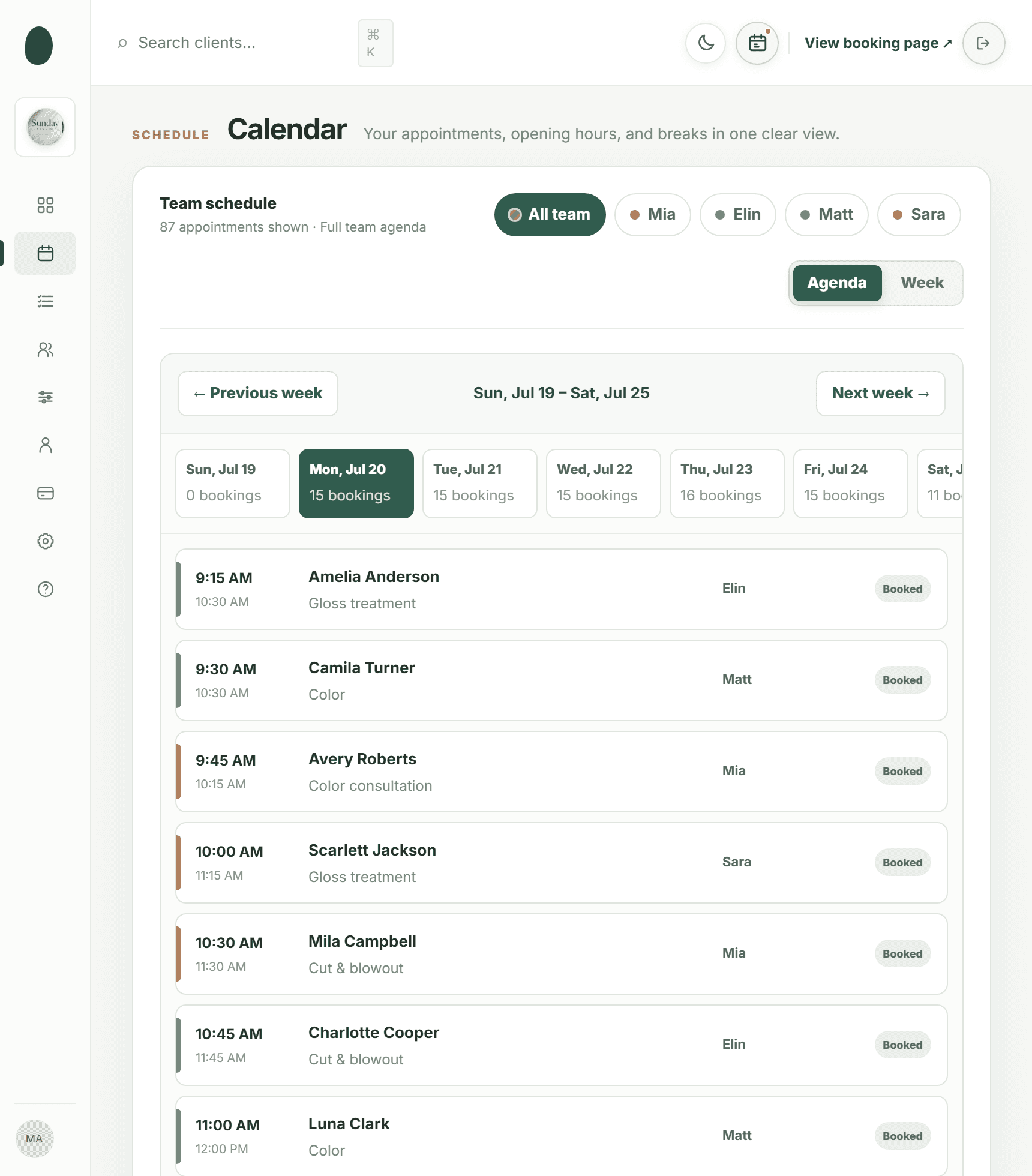
A good calendar should also let you filter by professional. Filtering helps you inspect one person’s availability without confusing it with another person’s appointments. It is especially important when two professionals have different working patterns or when a service can be performed by only one member of the team.
Add breaks, buffers, and service-specific limits
A professional may be present at the salon for eight hours but bookable for fewer than eight hours. Block meal periods, recurring personal breaks, opening tasks, closing tasks, and cleanup time. If a color service needs 15 minutes for cleanup, include that time in the service duration or buffer rather than booking the next client at the exact moment the service ends. Supporting details are available from break and meal period guidance.
Federal law does not require meal or coffee breaks under the Fair Labor Standards Act, but the Department of Labor distinguishes short rest breaks from longer meal periods when an employer provides them. State and local rules may add requirements, so use the calendar to reflect your actual policy and confirm employment obligations with a qualified local adviser. Supporting details are available from Department of Labor explanation.
- Use a recurring break block for the same lunch period every week.
- Use a service buffer when the time is required for sanitation, setup, or cleanup after a booking.
- Assign each service only to professionals who perform it.
- Check whether the professional can complete the entire service before their availability ends.
- Leave transition time when a professional must move between rooms, stations, or treatment areas.
- Do not use a break block to hide a service that has been assigned the wrong duration. Fix the service setup instead.
For example, if Maya works 10 a.m.–6 p.m., takes lunch from 1 p.m.–1:30 p.m., and performs a 90-minute facial with a 15-minute cleanup buffer, the booking system should not offer a 5 p.m. start. The appointment would run beyond her available time even though the calendar shows an open slot at 5 p.m.
Handle time off, closures, and one-time changes correctly
Recurring availability should stay clean. Do not permanently change a professional’s weekly hours just because they are taking a five-day vacation. Add a time-off exception for the specific dates, and use a salon-closure exception when nobody should be bookable, such as a holiday or deep-cleaning day.
This distinction is central to how to set staff availability for a salon calendar: recurring rules describe the normal pattern, while exceptions describe what changes temporarily. Established scheduling tools commonly treat recurring availability separately from one-off time off, which reduces the risk that a temporary absence becomes a permanent booking rule. Supporting details are available from recurring availability and one-time changes.
- Add the professional’s vacation or personal day as time off for the exact date and time.
- For a partial day, block only the unavailable period. Keep the remaining hours bookable if the person is still working.
- Use a salon closure for dates when no professional should receive online bookings.
- Review existing appointments before approving time off. Reschedule affected clients before removing the availability.
- If the exception repeats, decide whether it is truly recurring availability rather than a series of unrelated time-off entries.
- After saving, test the client-facing booking page for the affected date.
To manage staff time off salon owners should also define an internal request process. A simple rule works well: requests must include the date, start and end time, whether the person has affected appointments, and whether they can help with a reschedule. The calendar prevents new bookings, but it does not replace communication with clients who are already booked.
Configure booking rules that affect availability
Even accurate staff hours can produce confusing booking results if the global booking rules are wrong. Set the minimum notice period, the booking window, and the time-slot interval after your hours and services are configured. These settings determine which of the technically open times clients can actually see.
- Minimum notice: Prevent last-minute bookings that your team cannot prepare for. A two-hour notice rule may suit a simple haircut, while a longer lead time may be appropriate for a new-client color appointment.
- Booking window: Decide how far ahead clients may reserve. If schedules are published only four weeks ahead, do not expose six months of speculative availability.
- Time-slot interval: Use intervals that match how your services begin. Fifteen-minute intervals are usually easier to manage than five-minute intervals for most salon menus.
- Service duration: Verify the actual appointment length, including consultation time where appropriate.
- Cleanup or buffer time: Add the non-client work required before the station can accept the next service.
- Staff assignment: Make sure every bookable service is connected to the correct professionals.
A useful rule is to make the calendar slightly stricter than the theoretical schedule. If a stylist is scheduled until 6 p.m., do not offer a 5:30 p.m. appointment for a one-hour service. If you want to accept shorter services late in the day, assign those services their own duration and make sure the calendar calculates the end time correctly. For more detail, see Kevonia's service menu and booking rules.
If your system integrates with another calendar, remember that a busy event may or may not block online availability depending on the integration settings. Google Calendar’s appointment-schedule documentation explains that calendars marked for conflict checking can remove busy periods from the booking page, while unreviewed calendars may leave those periods open. Supporting details are available from Google Calendar conflict-checking documentation.
Where Kevonia fits into the process
Kevonia is designed for salons and spas that want staff availability, services, clients, payments, and online booking in one workspace. Its team calendar offers week and day views, per-professional filters, and color coding, so an owner can inspect the whole team or isolate one person’s schedule.
For availability specifically, Kevonia supports opening hours by weekday, multiple breaks, staff time off, salon closures, a booking window, minimum notice, and a time-slot interval. Its booking checks account for hours, breaks, time off, and existing bookings, helping prevent a client from selecting a slot that conflicts with the calendar rules already entered.
The practical difference is that you can set the recurring pattern and the exceptions in the same scheduling workflow, then check the client path through the branded booking page: service, professional, date, and time. Kevonia also lets you assign services to specific professionals and define duration, cleanup or buffer time, price, and optional deposit, so availability is based on the appointment that is actually being booked rather than on a generic open hour.
Kevonia has one plan at $49.99 per month, with unlimited team members, bookings, clients, and services and no per-booking commission. The free trial lasts 14 days, requires no credit card to start, and can be canceled anytime before the trial ends without a charge. Those terms may be relevant if you want to test your real weekly schedule before moving all online bookings.
Test the calendar before clients see it
Never assume a saved schedule is correct because the settings look reasonable. Test it as if you were a client, using several services, professionals, dates, and edge cases. A five-minute review can reveal a recurring break entered on the wrong day or a service accidentally assigned to someone who does not perform it.
- Choose a normal weekday and confirm the first available slot starts after the professional’s opening time.
- Test a service that lasts longer than a standard appointment.
- Test a booking that would run into lunch, closing time, or a cleanup buffer.
- Check a day with staff time off and confirm that the unavailable professional is not offered.
- Check a salon-closure date and confirm that no public slots appear.
- Filter the internal calendar by each professional and compare it with the public booking page.
- Create or preview a booking, then confirm that the selected service, professional, duration, and time all agree.
- Review the confirmation and reminder settings so the client receives the correct appointment details.
If a slot appears that should not be available, troubleshoot in this order: the professional’s recurring hours, breaks, time off, salon closures, service assignment, service duration, buffer, existing booking, minimum notice, and booking window. Change one rule at a time and retest so you know which setting fixed the problem. We cover this in more depth in prevent double bookings.
Common mistakes and a weekly maintenance routine
Most availability problems are not caused by a complicated calendar. They come from small inconsistencies between the schedule in the owner’s head, the schedule shared with staff, and the rules stored in the booking system.
- Using salon opening hours as every employee’s availability.
- Changing recurring hours for a single vacation or appointment.
- Forgetting that a service’s duration can push the end time past the professional’s shift.
- Entering lunch as an informal note instead of a blocked period.
- Leaving former employees assigned to services.
- Adding a new service without assigning the professionals who perform it.
- Allowing online booking farther ahead than the team schedule has been confirmed.
- Failing to review existing bookings before approving time off.
- Checking only the internal calendar and never testing the client-facing booking path.
- Relying on a shared spreadsheet after online availability has already been published.
Use a short weekly routine to keep the data accurate. Confirm the next two weeks of staff hours, review upcoming time off, check closure dates, inspect newly added services, and test one booking path for each professional. Before publishing a holiday schedule, repeat the test on the dates around the closure because clients often try to book the day before or after.
If you are moving from a manual process, document who can edit recurring availability, who approves time off, and who handles client rescheduling. Clear ownership prevents two people from changing the same rule or assuming that someone else blocked a professional’s absence. We cover this in more depth in online booking setup guide.
FAQ about salon staff availability
The answers below cover the questions salon owners usually encounter after setting up their first calendar rules.
Can I use one availability schedule for the entire team?
Usually, no. The salon’s opening hours can be shared, but each professional needs individual availability if team members work different days, take different breaks, or offer different services. A single team schedule may show the business is open while incorrectly offering a client a professional who is not working.
Should time off change recurring staff hours?
No. Keep recurring hours as the normal weekly pattern and add time off for the specific date or period. Change the recurring rule only when the person’s regular schedule has permanently changed. This makes future availability easier to understand and prevents an old vacation from affecting later weeks.
Why is a time slot visible even though the stylist is nearly finished for the day?
Check the service duration and cleanup or buffer time first. A 30-minute opening at the end of a shift cannot accept a 60-minute service. Also check whether the booking system is using a different time-slot interval or a service assignment that bypasses the intended professional rule.
How do I block lunch without closing the entire salon?
Add a break to the specific professional’s availability rather than creating a salon-wide closure. If several staff members take lunch at different times, enter separate breaks so the salon can continue accepting appointments with the professionals who remain available.
What should I do when a staff member calls out after appointments are booked?
First, review the affected bookings and contact clients using your normal rescheduling process. Then add time off for the exact remaining period so no new appointments are accepted. Do not delete the person’s recurring schedule unless the absence represents a permanent change.
How often should I review salon calendar availability?
Review the next two weeks every week, and review the next month whenever you publish a new schedule. Test the public booking page after major changes to hours, services, staff assignments, closures, or booking rules. That routine catches errors before they become client-facing problems.
Sources
- Kevonia
- Kevonia salon and spa management software
- Kevonia live demo
- Kevonia salon booking program
- Kevonia salon reservation software
- How to Prevent Double Bookings in a Salon: 9 Practical Steps
- Online Booking System for Salons: 2026 Setup Guide
- Square: Set up team schedules
- Square: Manage bookable staff schedules and availability
- U.S. Department of Labor: Breaks and Meal Periods
- Google Calendar: Check your availability across calendars
Frequently asked questions
Can I use one availability schedule for the entire team?+
Usually, no. Keep salon opening hours separate from each professional’s working hours, breaks, services, and time-off exceptions. Individual rules prevent clients from booking a person who is not working.
Should time off change recurring staff hours?+
No. Use recurring hours for the normal weekly pattern and a time-off exception for a vacation, appointment, or other temporary absence. Change recurring availability only when the regular schedule has changed.
Why is a time slot visible even though the stylist is nearly finished for the day?+
Check the service duration, cleanup or buffer time, time-slot interval, and staff assignment. The calendar should hide a start time when the complete appointment would extend beyond the professional’s available hours.
How do I block lunch without closing the entire salon?+
Add a break to the individual professional’s availability. Use separate break periods for staff who take lunch at different times so other professionals remain bookable.
What should I do when a staff member calls out after appointments are booked?+
Review the affected bookings, contact clients through your normal rescheduling process, and add time off for the exact unavailable period. Do not remove the recurring schedule unless the absence is permanent.
How often should I review salon calendar availability?+
Review the next two weeks weekly and check the next month whenever a new schedule is published. Test the public booking page after major changes to hours, services, staff assignments, closures, or booking rules.
More from the blog

Using Google Calendar for Salon Bookings: Where It Works and Where It Breaks
Google Calendar can handle simple appointment scheduling, but salons often outgrow it when they need services, staff rules, deposits, reminders, and client records in one place.

Timely Alternative: Flat-Cost Booking Software for Salons
Timely is capable salon software, but its per-staff pricing and broader feature set are not right for every business. Compare Timely with Kevonia before you switch.

Beauty Salon Software for iPad: What to Look For in 2026
Looking for beauty salon software for iPad? Learn which booking, calendar, payment, and staff-management features matter—and where Kevonia, Vagaro, Square Appointments, and Fresha fit.